Enable and customise subtitles on Teleboy TV
Subtitles can be switched on or off on various devices, provided the channel or programme supports them. You can tell by the subtitle icon in the video controls.
Short answer: during playback, tap the subtitle or audio track icon and choose your language. On Smart TVs and in the browser you can also customise how subtitles look (size, contrast, colour).
TABLE OF CONTENTS
Enable subtitles by device
1Web browser
Open the settings → click Audio track → select the subtitle language you want.
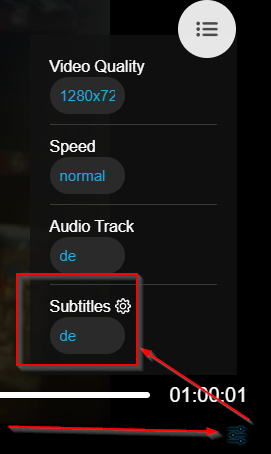
2Samsung TV
Start the programme → press Pause → select Audio channel → switch subtitles on or choose the language.
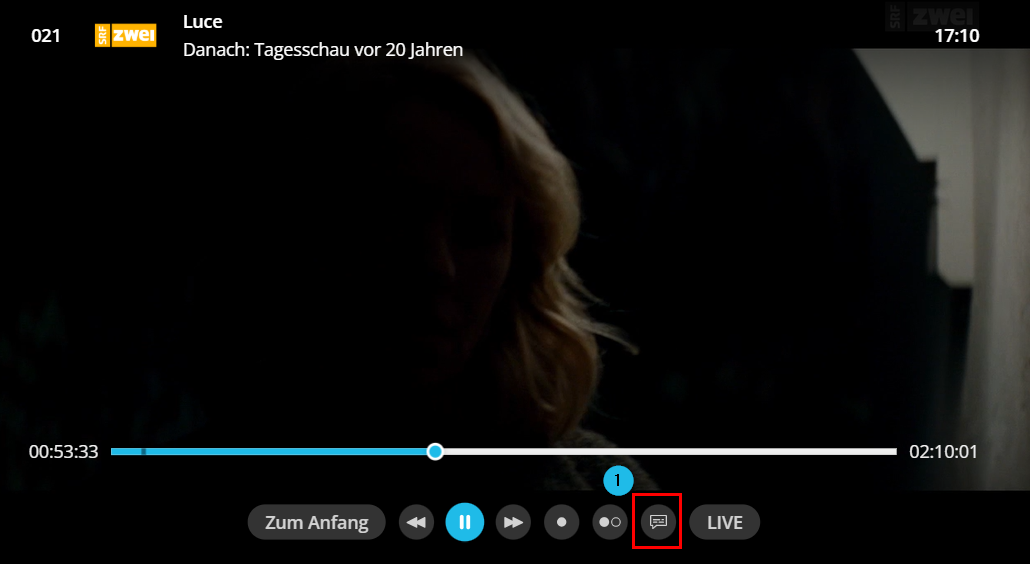
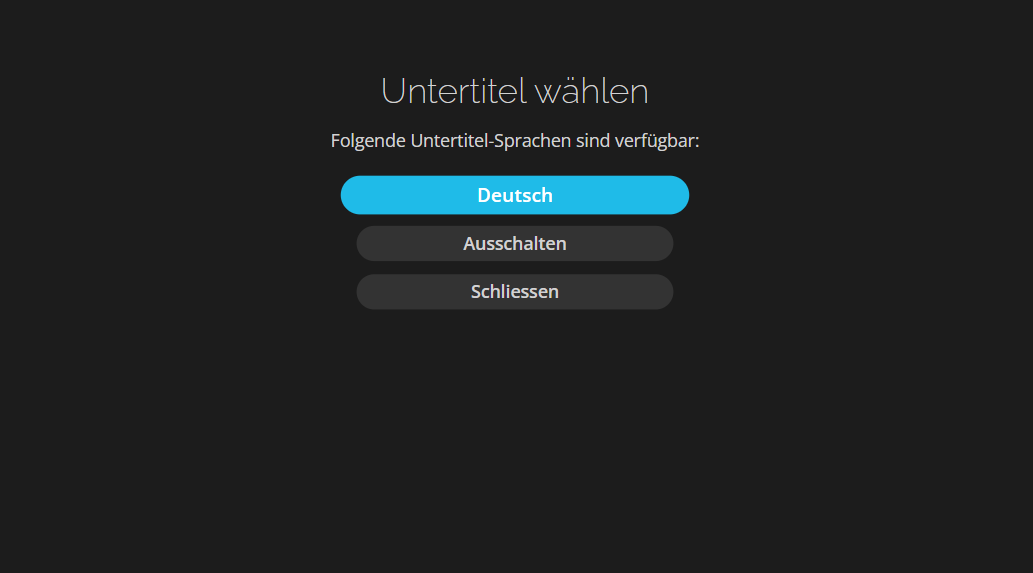
3Apple TV
Start the programme → swipe down on the remote → select Enable subtitles → choose the language.
4Android TV
Start the programme → press Pause → select Subtitles → choose the language.
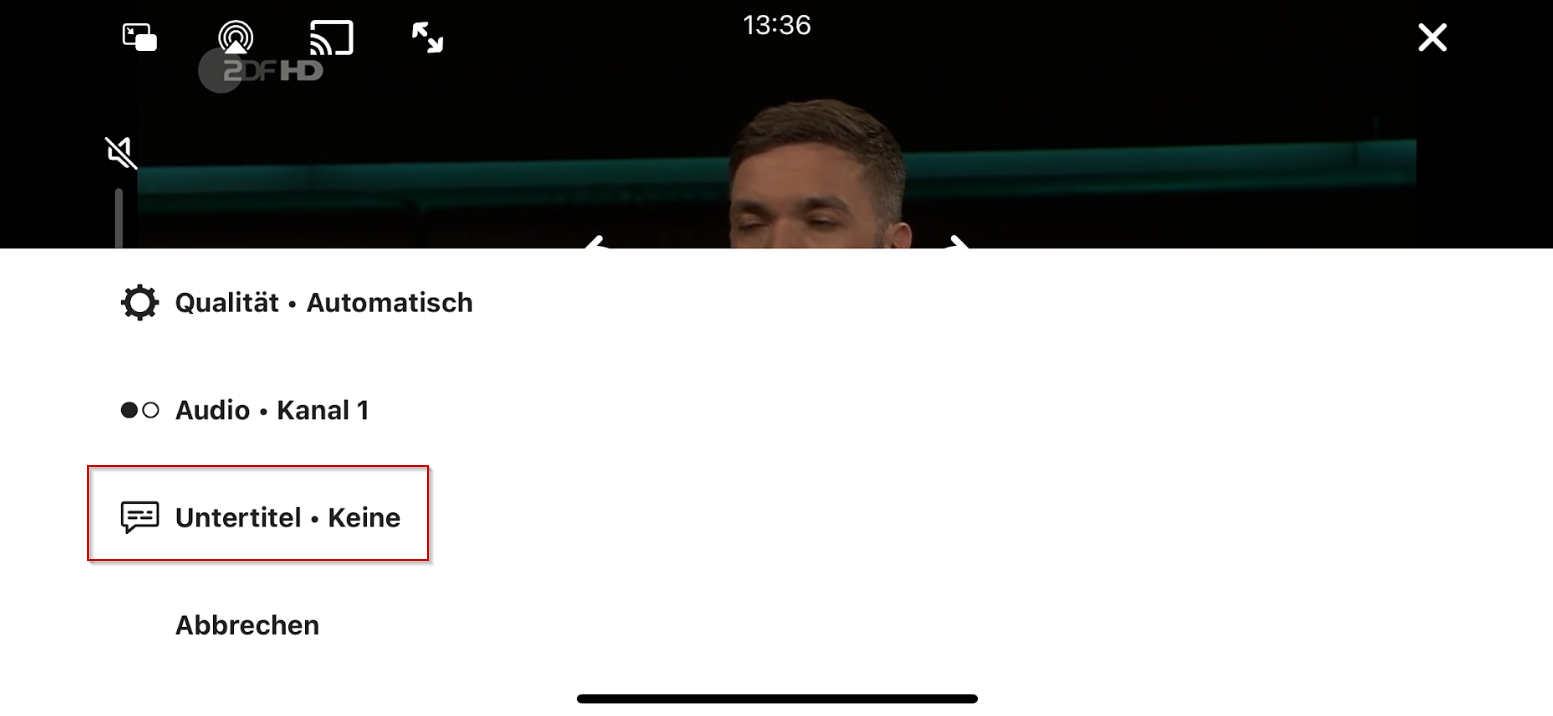
5iPhone
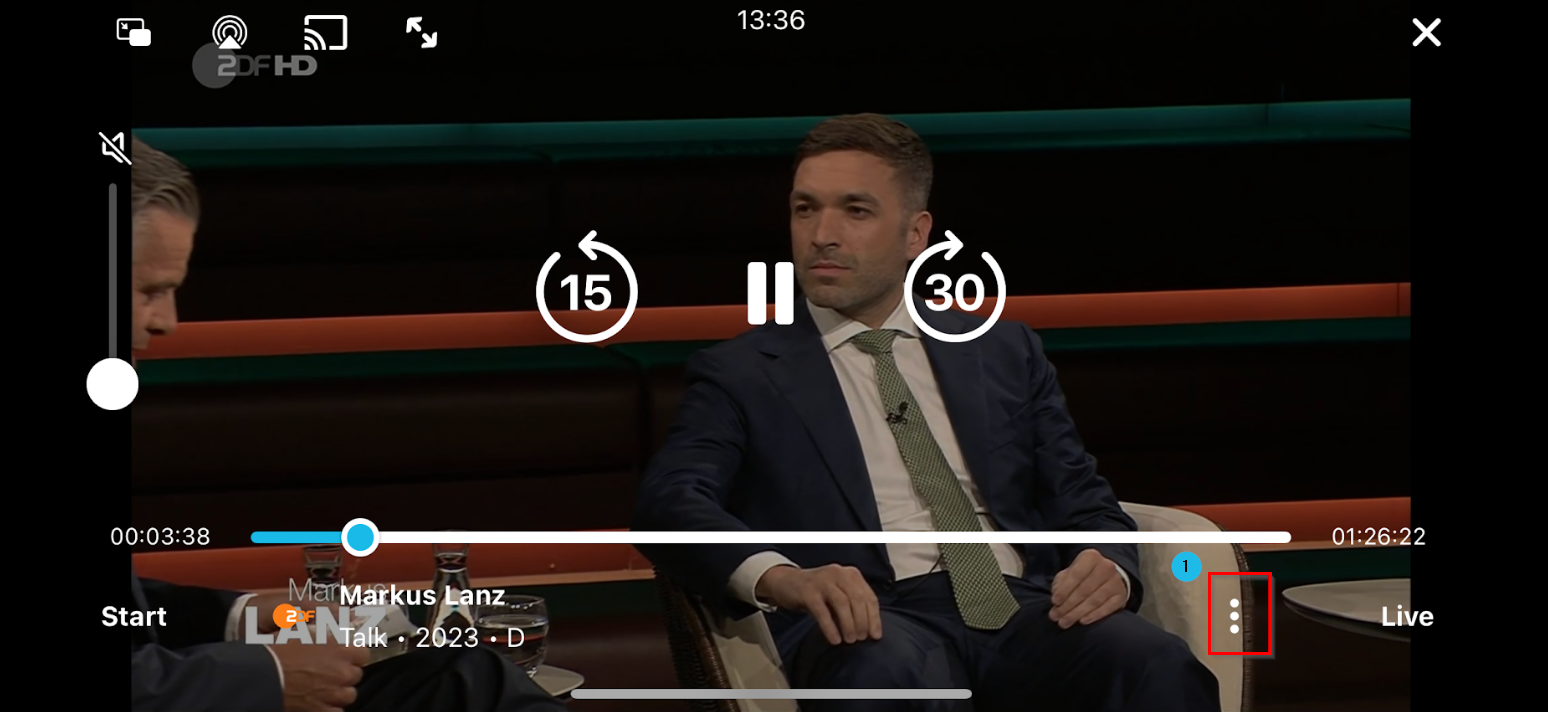
Start the programme → tap the three dots (bottom right) → select Subtitles → choose the language.
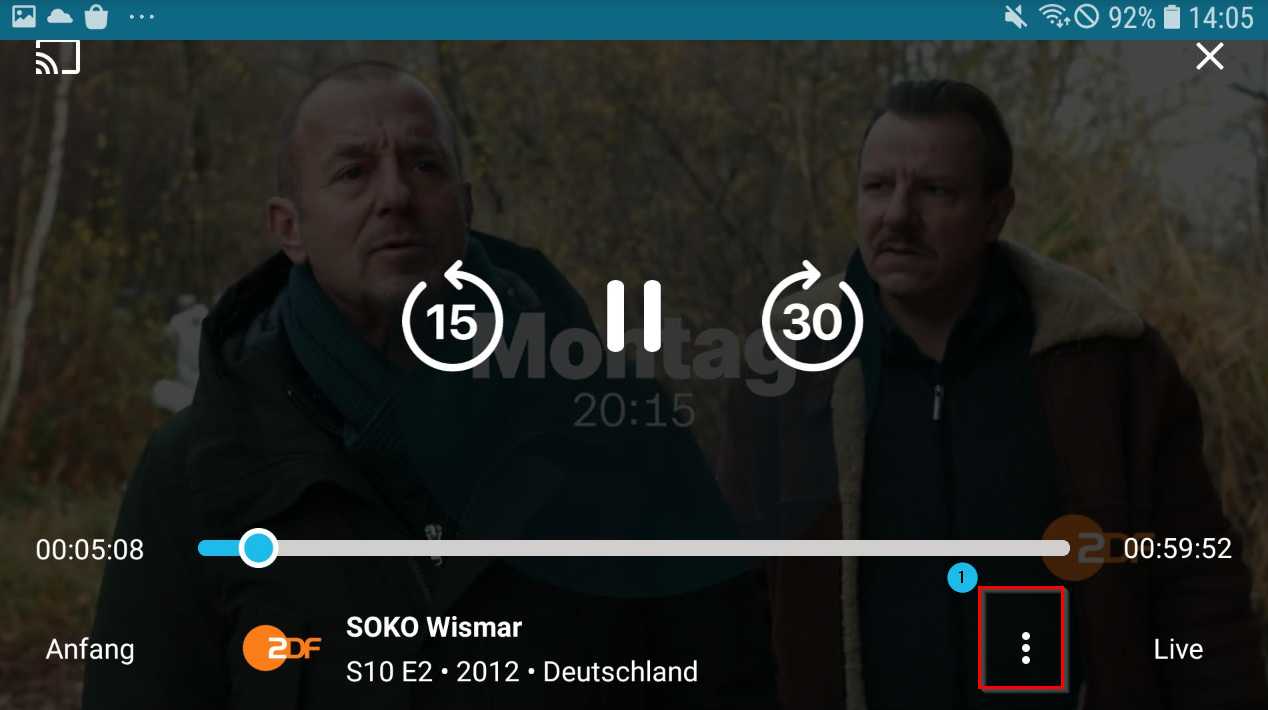
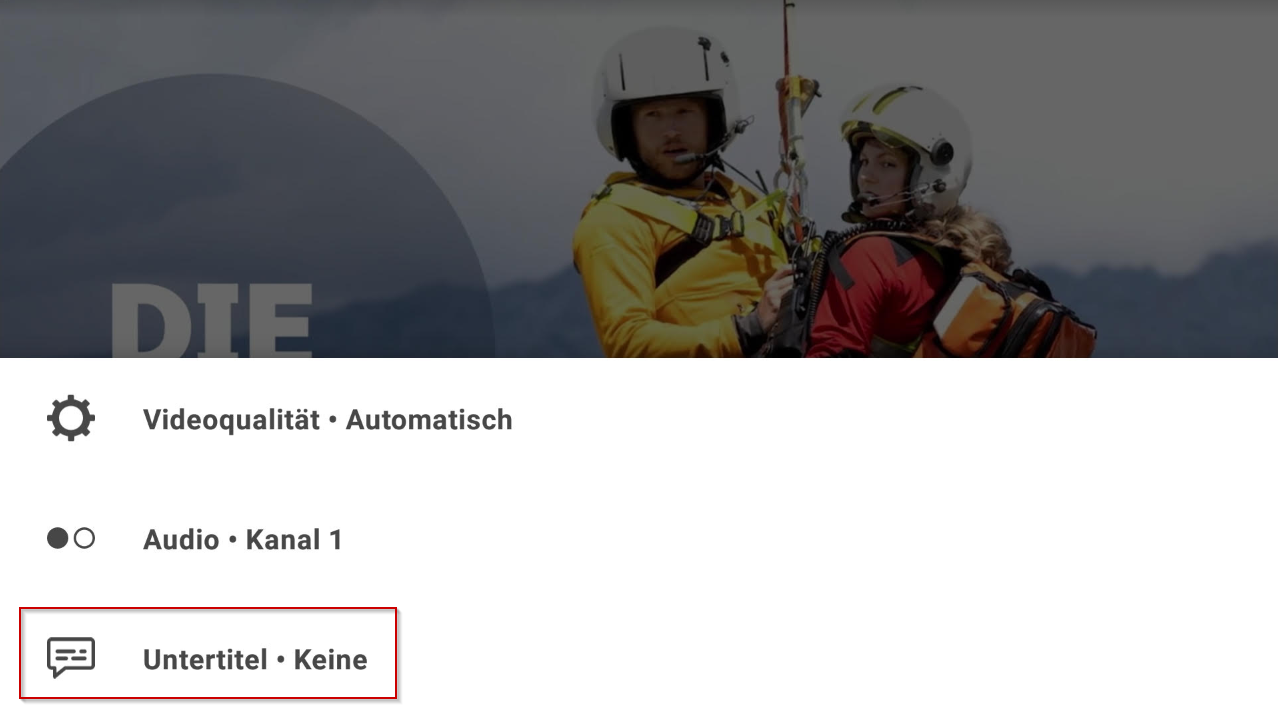
6Android phone
Start the programme → tap the three dots (bottom right) → select Subtitles → choose the language.
Customise the appearance: size, contrast and colour
You don't just control the language and on/off switch. On Smart TVs and in the browser you can also decide how subtitles are displayed.
1Smart TV: four presets
On Samsung (Tizen), LG (webOS) and Philips (Saphi and Titan OS) the subtitle settings offer four ready-made variants: Standard, Large font, High contrast and Large font and high contrast. The preview on the right shows the result immediately.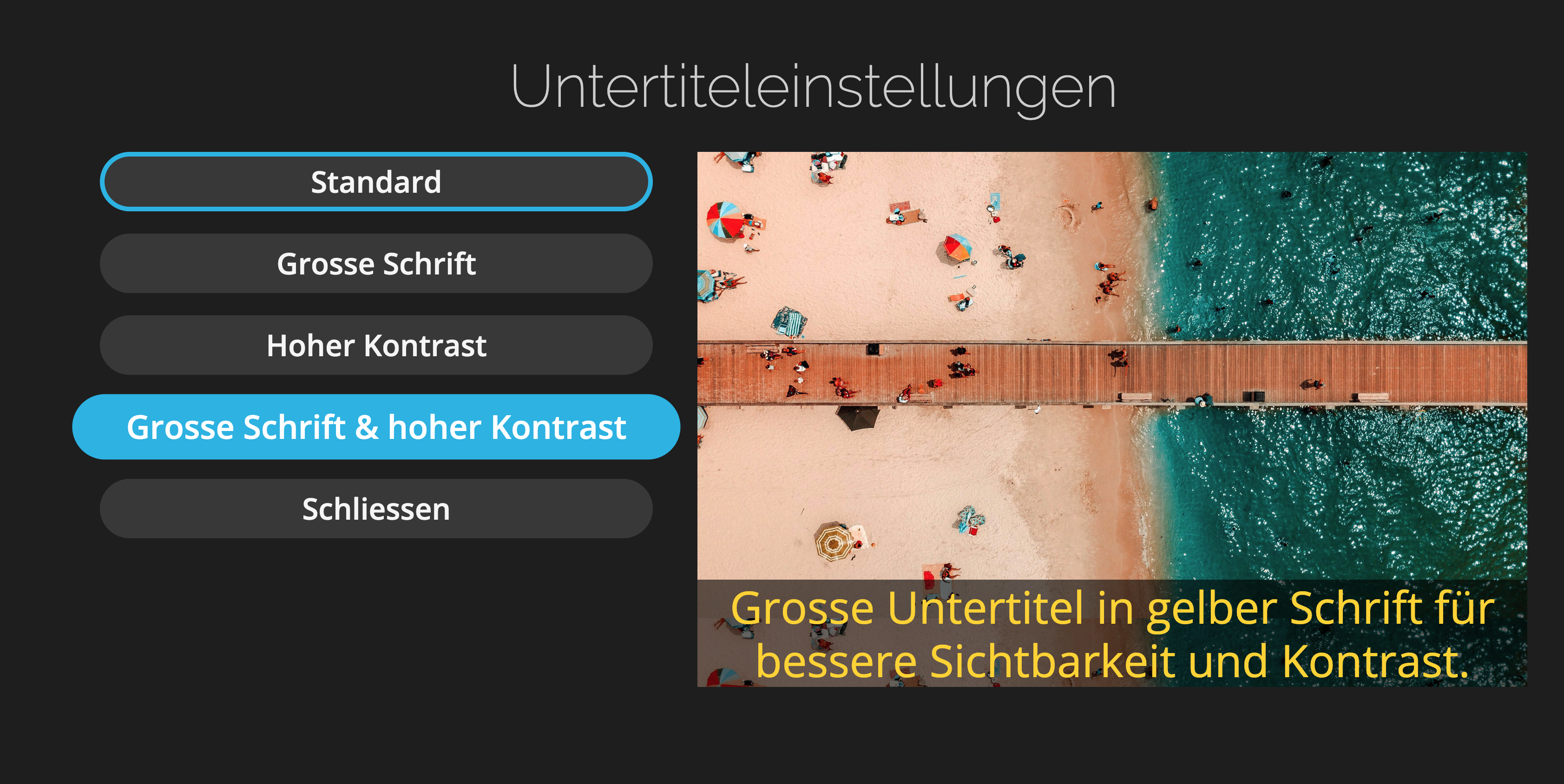
2Web browser: settings in detail
During playback, click the gear icon → Subtitles → Options at the top right. There you can adjust each item individually: size, font style, typeface, colour, opacity, edges, character outline colour as well as background colour and opacity.
Use Reset (top right) to restore the original state at any time.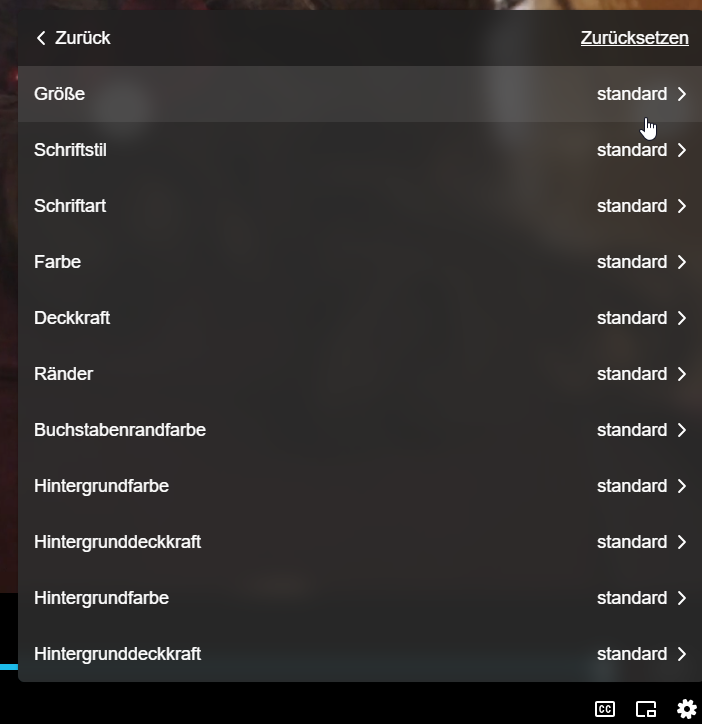
3Apple TV: via the system settings
On Apple TV the subtitle appearance is not set in the Teleboy app but in the device's system settings (under Accessibility or "Subtitles and Captioning"). The setting applies to all apps.
⚠ Not available on Android TV
On Android TV subtitles can only be switched on or off and the language selected. Size, contrast and colour cannot be changed.
✓ All set!
Subtitles are on and displayed just the way you want. Enjoy watching!
Was this article helpful?
That’s Great!
Thank you for your feedback
Sorry! We couldn't be helpful
Thank you for your feedback
Feedback sent
We appreciate your effort and will try to fix the article