How do I set up my DSL FRITZ!Box with Teleboy?
Instructions for setting up your FRITZ!Box are available at teleboy.ch/setup.
⚠ Important
This article applies if the red info LED is permanently lit or the automatic configuration did not work. Connect the FRITZ!Box directly to the telephone socket using the DSL cable.
How to proceed
1Establish a connection to the FRITZ!Box
Connect your computer to the FRITZ!Box using a LAN cable (yellow). A Wi-Fi connection is also possible.
2Open the user interface
Open a browser and enter: http://fritz.box (without www)
3Log in to the FRITZ!Box
The login data can be found on the bottom of the FRITZ!Box. Note: This data differs from the Wi-Fi password (network key/WPA2).
4Set up access data
In the menu, go to 'Internet' → 'Access Data', select 'Other Internet Provider' as provider, and under 'Access Data' choose 'No'.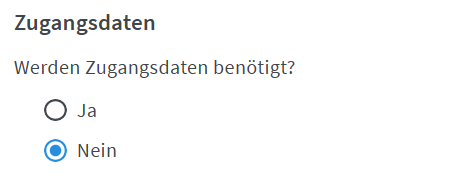
5Additional settings
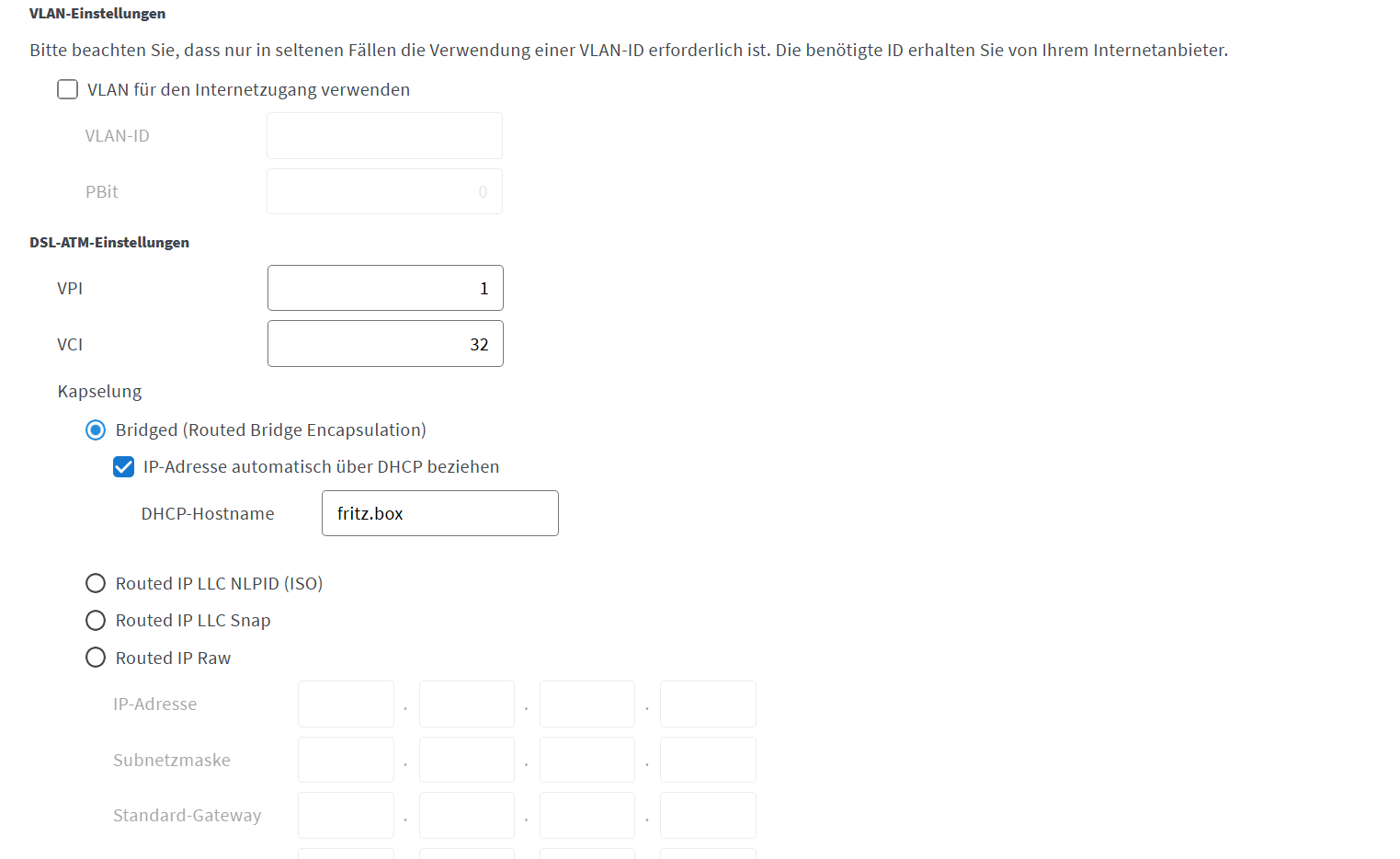
• Connection type: DHCP
• VLAN ID: 10 (only if it does not work right away)
• Annex: Annex A (only necessary for DSL)
6Save and test
Click on 'Apply' and wait while the FRITZ!Box tests the internet access.
✓ Done!
The connection is successful when the info LED lights up green continuously.
Further helpful article:
Setting up the telephone (FRITZ!Box router)
For any questions: www.teleboy.ch/en/contact
Was this article helpful?
That’s Great!
Thank you for your feedback
Sorry! We couldn't be helpful
Thank you for your feedback
Feedback sent
We appreciate your effort and will try to fix the article