Manage & Remove Registered Devices
In your Teleboy account, you can always see which devices you are logged in on and end individual sessions with a single click.
Quick answer: Device list at my.teleboy.ch/user/devices – log out devices individually.
How to proceed
1Open the device list
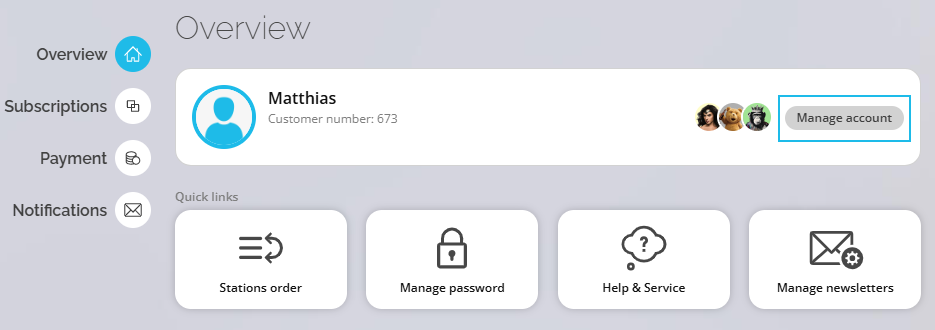
Visit my.teleboy.ch/user/devices or in the Cockpit under Overview → Manage account → Device management.
2Understand the displayed devices
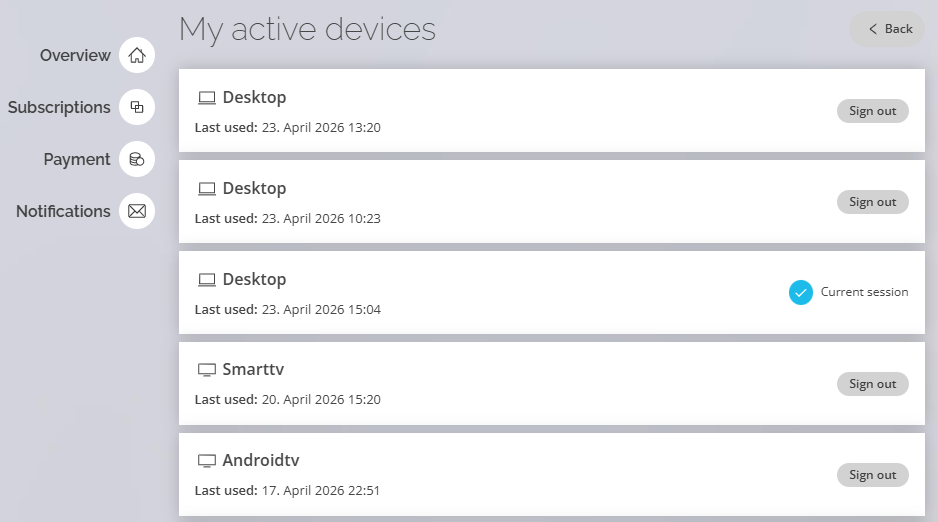
The list shows all active sessions: desktop browsers, Smart TV and Android TV – each with the date of last use. The current session is marked with a blue checkmark and cannot be logged out.
3Remove a device
Click Log out next to the device you want to remove. It will be logged out immediately and redirected to the login page on next reload. Recordings and settings are not affected.
⚠ Unrecognised device?
If you don't recognise a device: remove it immediately and change your password at my.teleboy.ch/user/password.
✓ Done!
Device successfully removed – your account is protected.
Was this article helpful?
That’s Great!
Thank you for your feedback
Sorry! We couldn't be helpful
Thank you for your feedback
Feedback sent
We appreciate your effort and will try to fix the article